Best Remote Work Tech Setup 2026: My Home Desktop + Travel Kit Split (For Working From Anywhere)


I’m not a career digital nomad. I work from my AMD Ryzen 7900X / RX 7900 XT desktop about 90% of the time, in the same chair, with the same two monitors, drinking the same coffee. But the other 10% – when I’m on the road for moto vlog shoots through the Balkans or further into Europe – I need a setup that fits in a backpack and still lets me do real work. Calls. Edits. Quick turnarounds.
So I run two setups in parallel. A desktop that does the heavy lifting at home, and a travel kit that I’ve spent way too long refining so that it actually earns its bag space.
This is what’s in both, what I’d skip even if you handed it to me free, and how to think about the split if you’re not sure which side you actually need.
TL;DR – The Split-Setup Philosophy
Most “remote work setup” guides treat your gear like one fixed pile. That doesn’t match how most people actually work in 2026.
If you mostly work from one place, build a real desktop or a docked laptop setup and stop carrying gear you don’t need. If you travel often, build a separate, deliberately minimal travel kit instead of trying to lug your home setup around. And if you split between both (most of us), accept the duplication. A second laptop isn’t waste if it keeps your main workflow intact when you’re away.
If you only buy three things from this guide: get a laptop with all-day battery, a single-cable USB-C portable monitor, and a travel router with VPN support. Everything else is incremental.
Why I Split My Setup (Home Desktop vs Travel Kit)
The honest reason: a desktop tower will always do creative work faster, cooler, and cheaper per dollar than a laptop. My 7900X handles 4K video edits, Lightroom batch exports, and a few dozen Chrome tabs without breaking a sweat. A laptop that matches it costs roughly double and runs its fans like a jet on takeoff.
But a desktop doesn’t travel. So when I’m on a moto trip and need to push a rough cut to a client, dump SD cards, or hop on a video call from a hotel that has Wi-Fi which mysteriously dies during the third meeting of the day, I’m not going to crate-ship my desktop. I bring a tight, deliberate kit instead. That kit’s job isn’t to replace the desktop. It’s to keep work moving until I’m home.
This is the part most setup guides miss. They write as if you’re one person doing one kind of work in one place. Real life is messier.
Last summer I did a 10-day moto trip through Slovenia and Croatia and the split-setup paid off the only way that matters. I was able to push a rough cut to a client from a hotel in Split, then fly home and finish the color grade on the desktop the next day. Without the travel kit, that would have been a missed deadline.
The Travel Kit, by Category
This is the kit I actually pack. Some items are mine, some are picks I’d recommend based on reviewer consensus where I haven’t personally lived with them yet. I’ll flag which is which.
Laptop
The travel laptop is the most expensive thing in the kit and the one decision that affects every other one. Get this right and the rest gets easier.
Top pick for most remote workers: Apple MacBook Air with M5 (13-inch). $1,099 MSRP, frequently $949 on Amazon sale, with 16GB RAM and 512GB SSD as the new baseline as of Apple’s M5 MacBook Air announcement in March 2026. Wi-Fi 7, up to 18 hours of battery in Apple’s testing, and silent operation because there’s no fan. For email, docs, calls, light photo work, and even moderate video edits, it’s hard to beat. The 15-inch version is $1,299 MSRP, often $1,149 on sale if you want more screen, same internals.
Reviewers consistently call out the M5 chip’s roughly 4x AI performance gain over M4 and faster unified memory, which translates to snappier app launches more than dramatic real-world differences for most office work. The ports are the catch – two Thunderbolt 4 plus MagSafe and a headphone jack, and that’s it. If you plug in a monitor, a drive, and want to charge, you need a hub or a powered USB-C monitor.
For Windows users who want premium build: Dell XPS 14 (2026, model DA14260). Starting at $1,599.99 per Tom’s Hardware’s review. The 2026 XPS 14 redesign is lighter, smaller, and more functional than recent generations, with a physical function row, tactile bars marking the touchpad, and Intel Core Ultra Series 3 (Panther Lake) chips. Three Thunderbolt 4 ports give you more connectivity than the MacBook Air’s two. Tandem OLED display optional. Battery life tested at 40+ hours of local video playback on the 2K LCD config. The new XPS 13 was announced at CES 2026 as coming later in 2026 at a more accessible price point, but isn’t available yet. Wait for that if you want maximum portability and don’t need it this month.
For typists and corporate IT: Lenovo ThinkPad X1 Carbon Gen 14. Reviewers still describe its keyboard as the best on any laptop, full stop. The Gen 14 refresh adds Intel Core Ultra X9 platform support and a redesigned chassis that improves repairability. If you type for a living, this is the one.
For budget-conscious creators: ASUS ZenBook 14 OLED. A 2.8K OLED panel at well under MacBook Pro money, AMD Ryzen AI inside, and respectable battery life. Reviewers flag the fan getting loud under load, but for general office work you’ll rarely hear it.
Honest note: I haven’t personally lived with the M5 MacBook Air or the 2026 XPS 14 long enough to give a verdict. These picks reflect reviewer consensus from the testing I’ve read across PCWorld, PCMag, Tom’s Hardware, and CoinCodex. I’ll update this section after I’ve spent real time with them.
Honorable mention for gamers: ROG Xbox Ally. Asus and Microsoft launched this in October 2025, hovering around $499-540 at major retailers in 2026. Handheld Windows 11 PC, 7-inch screen, AMD Ryzen Z2 chip, 16GB RAM. Not a remote work laptop, the keyboard situation is a deal-breaker for actual typing. But if you want to game on the road as a second device, per Windows Central’s testing, it can do light office work in a pinch when paired with a Bluetooth keyboard.
Portable Monitor
One screen on a 13-inch laptop after months of dual-monitor desktop life feels like working through a keyhole. A portable monitor fixes this and weighs less than a textbook.
The category has gotten genuinely good in the last two years. PCWorld’s portable monitor testing, TechRadar, and BGR all converge on a few names:
ARZOPA Z3FC and Z1FC. The Z3FC pushes a 180Hz QHD IPS panel in a slim package and reviewers consistently rate it as the best all-rounder, $145-200 on Amazon sale, $359.99 MSRP. The Z1FC is the budget pick, 16.1-inch 1080p at 144Hz, $109-149 on Amazon depending on the day, $209.99 MSRP. For text work and second-screen video calls, the Z1FC is honestly all you need.
ASUS ZenScreen MB16AC. Listed by BGR at around $200, it’s nearly a decade old at this point but still gets recommended for one reason: it’s 1.7 lbs and 8mm thick. If pack weight is your top priority over everything else, this wins.
ViewSonic VG1655. Two USB-C ports with 60W power delivery (it can actually charge your laptop), Mini-HDMI for non-USB-C devices, decent fold-out stand. Around $200. Per PCWorld’s testing, image quality is middling for color work but solid for spreadsheets and code.
For USB-C single-cable connection, look for a monitor with at least one USB-C port supporting DisplayPort Alt Mode plus power delivery. That’s the magic combo that lets you plug one cable into your laptop and have video plus charging happen at the same time.
Travel Router and Connectivity
This is the unsexy purchase that has saved me more headaches than anything else. Hotel Wi-Fi is mostly fine in 2026, but “mostly fine” includes dropped video calls, captive portals that hate every device you own, and the slow creeping doubt that anyone could be sniffing your traffic.
GL.iNet Beryl AX (GL-MT3000). $69-99 depending on Amazon deal, $109.90 MSRP, pocket-sized, Wi-Fi 6, built-in WireGuard and OpenVPN client support. You set it up once at home, connect it to whatever Wi-Fi you find on the road, and your laptop, phone, and any other devices connect to your router. They stay on one consistent SSID. They stay encrypted if you’ve configured a VPN on the router. They don’t have to fight the hotel captive portal individually.
Per the Earth SIMs ten-month review and ServeTheHome’s testing, the Beryl AX achieves roughly 300-500 Mbps on Wi-Fi 6 in repeater mode close-range, dropping to 150-250 Mbps at typical hotel distances, and 200-350 Mbps with WireGuard VPN enabled – more than enough for video calls and remote work. One reviewer flagged it gets flaky if you try to use it as a permanent home neighbor-Wi-Fi bridge, which isn’t its intended use anyway.
GL.iNet Slate AX (GL-AXT1800) is the step up – $119 , 1,800 Mbps Wi-Fi 6, three Ethernet ports. Pick this if you transfer large files often or want a slightly more powerful machine for the same pocket-router form factor.
Eero portable and similar consumer travel routers exist but lack the VPN-on-router functionality that’s the whole point. Per Nomad Outfit’s comparison, the GL.iNet line wins this category for remote workers specifically, not just travelers.
Also worth budgeting for: a good eSIM plan as backup. If hotel Wi-Fi dies and you’re an hour from your next call, tethering off your phone is the difference between a productive afternoon and a panicked apology email. Most modern flagship phones support multiple eSIM profiles, so you can keep your home line plus a local data plan loaded simultaneously.
Power: GaN Charger, Power Bank, Adapters
Cable management on the road is a whole separate skill. The single biggest upgrade I made in the last two years was throwing out the four bricks I used to carry and replacing them with one multi-port GaN charger.
Anker 65W 3-Port (Anker 735 Nano II) or Anker 100W Prime. The 65W three-port is around $30-50 and handles a MacBook Air, a phone, and earbuds at the same time. The 100W Prime ($70-80 ) adds enough headroom to charge a larger laptop at full speed even with two other devices plugged in. Engadget’s chargers roundup calls the 67W Anker the pick if you can only bring one.
UGREEN Nexode 100W or Nexode 65W Ultra-Slim. Similar performance to Anker, often a few dollars cheaper, sometimes with interchangeable international plugs built in. UGREEN’s GanPrime line is the one to look at if you cross borders regularly. Per TechGearLab’s testing, both brands deliver effectively identical charge times on real laptops.
For a power bank, the rule I follow is: a 20,000mAh battery with at least 65W USB-C PD output. That’s enough to fully charge a MacBook Air once and still have phone-juice left, and it’s also right at the FAA limit for carry-on (100Wh, which 20,000mAh at 5V works out to). Anker, UGREEN, and Baseus all make solid options around $60-90.
Travel adapters: skip the universal-spaghetti adapters that try to do everything and feel like a hand grenade in your bag. Get a small set of country-specific adapters for the regions you visit most. They’re cheaper, smaller, and don’t fall apart after six months.
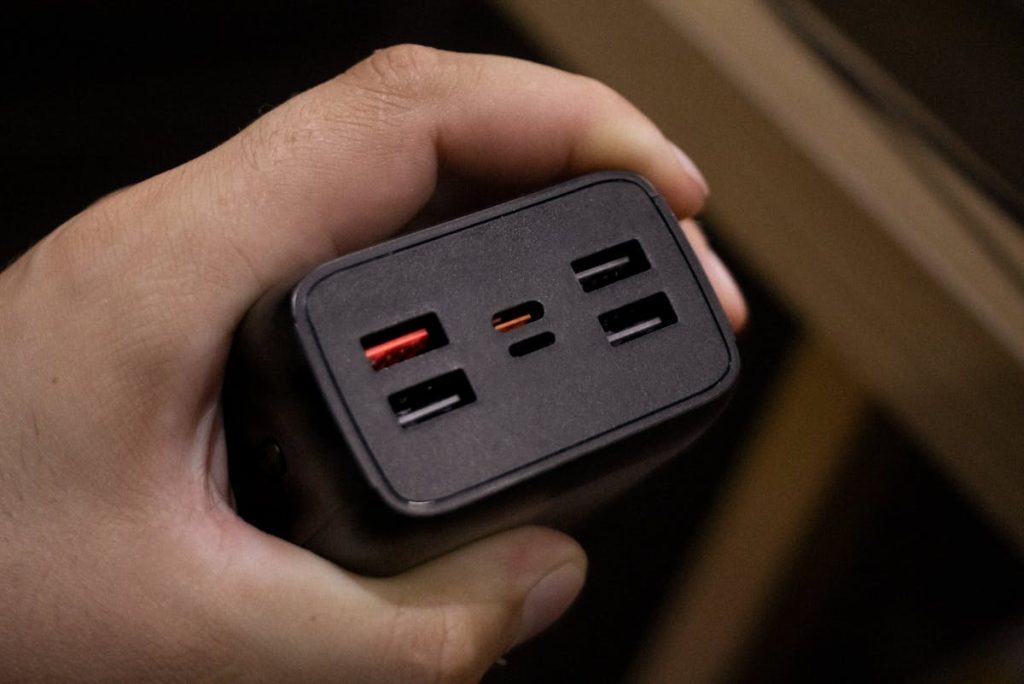
Image: Photo by Pedro Paiva
Audio: Headphones and Microphone
Good audio is a respect-multiplier on video calls. Bad audio makes everything you say sound less competent than it actually is. This is one place I genuinely don’t skimp.
Headphones – noise-cancelling wireless:
- Sony WH-1000XM5 or XM6 (whichever’s available) – reviewers consistently rate Sony’s ANC as best-in-class. Around $400 new, often $300 on sale.
- Bose QuietComfort Ultra – slightly softer ANC but more comfortable for all-day wear, per most reviewers.
- Apple AirPods Max – if you’re deep in Apple’s ecosystem and want seamless device switching.
For earbuds when over-ears are too much:
- Sony WF-1000XM5 or AirPods Pro 2 – both have credible ANC and good call mics.
Microphone for actual recording / podcasting on the road:
This is where I lean in. I run a moto vlog channel, so audio gear is something I’ve genuinely tested for years rather than just specced from press releases.
- DJI Mic 3. Around $219 for single TX+RX, $349 for the full kit. Released August 2025, this is DJI’s successor to the Mic 2 and the one I’d buy today. Genuinely meaningful upgrades: 8-hour TX battery (vs 6h on Mic 2), half the transmitter size and weight (16g vs 28g, barely noticeable on a moto jacket lapel), 400m wireless range in clean conditions (vs 250m on Mic 2), timecode support for multi-cam setups, and dual-channel lossless 24-bit transmission. The trade-off: no 3.5mm jack on the transmitter, meaning you can’t plug in a separate lav mic directly. The DJI logo is also more visible on camera than I’d like. For run-and-gun moto vlog work where I’m clipping it to my own jacket, the smaller footprint and longer battery are worth it. Per TechRadar’s head-to-head review, the Mic 3 is the clear winner for new buyers.
- DJI Mic 2 if you want a 3.5mm jack. Still excellent, still around $219 single / $349 kit. If you need to plug in a wired lav mic directly (which the Mic 3 can’t do), or if you find it on sale, the Mic 2 is still a perfectly good mic. 32-bit float internal recording, magnet attachment, supplied furry windsock handles real wind conditions. Per Digital Camera World, it’s still the move for solo creator setups where you don’t need timecode or multi-cam pro features.
- Rode Wireless Pro for production-grade work. Around $400. Per The Greatest Song’s review and most professional reviewers, this is the pick if you’re doing real production. 32GB internal storage versus DJI’s smaller buffer, plus timecode sync and locking connectors that don’t pop loose mid-shoot. Heavier kit. The interface is fiddlier than DJI’s touchscreen. Worth it if you’re producing client work where audio failure can’t happen.
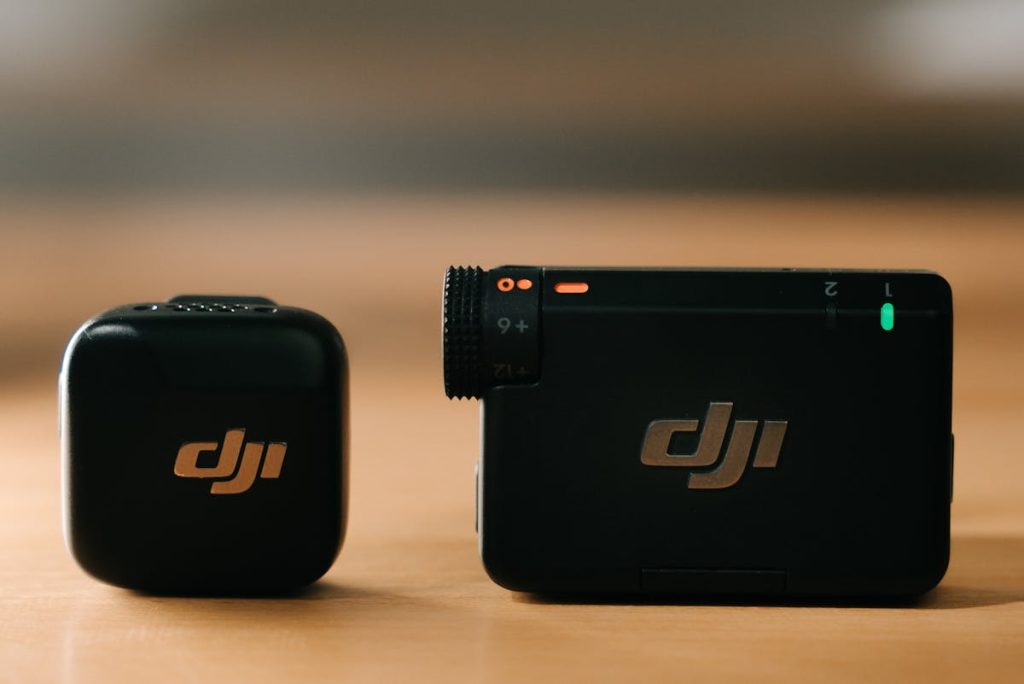
Image: Photo by Alpha En
Phone for Content Creation
If you make video on the road, your phone is part of the kit whether you wanted it to be or not. I’m not brand loyal – I’ve owned flagships from Samsung, Apple, Google, OnePlus, Xiaomi. Camera quality is my number one filter because it determines whether I can hit publish on a vlog from a hotel or have to wait until I’m home at the desktop.
My current phone: Vivo X200 Ultra. I imported this from China because no Western flagship matched it for stills. The 35mm main camera, 14mm ultrawide, and 200MP telephoto all share equally large sensors — that’s still unusual in 2025/2026 phones. Per DXOMARK’s testing it sits on par with Xiaomi 15 Ultra and just below Galaxy S25 Ultra in the global camera rankings, but the 35mm main lens is a genuine point of difference.
Honest caveats for importers: It’s China-only. $849-1,359 from Giztop depending on configuration and current promo, with similar pricing from WondaMobile and TradingShenzhen. You’ll need to manually install the Google Play Store, eSIM support is missing on the China model, contactless payments can be finicky, and video output is rated slightly behind the Galaxy S25 Ultra and iPhone 17 Pro Max for run-and-gun work. Per Android Authority’s review, the Quick Share feature also doesn’t work properly on imported units. Worth knowing before you spend a grand-plus on a phone you can’t return easily.
If you want a phone available in your country with similar-tier cameras, reviewers in the running for “best 2026 camera phone” consistently include:
- Samsung Galaxy S26 Ultra: honest verdict on the Galaxy S26 Ultra
- iPhone 17 Pro Max
- Google Pixel 11 Pro
- Oppo Find X9 Ultra (limited availability outside Asia/Europe)
I haven’t lived with all of these yet, so I’m leaning on reviewer consensus. Per Android Central and Digital Camera World, the gap between top flagships in 2026 is the smallest it’s been in years – pick the ecosystem you’re already in unless camera output is your literal job.
Camera and Action Camera Gear
This is the deepest section because it’s where I have the most actual hands-on time. If you’re not a content creator, skim or skip.
Action cameras for vlogging on the move:
- DJI Osmo Action 5 Pro – per Outdoor Tech Lab’s field testing, this is the better all-rounder for most outdoor work in 2026. 1/1.3-inch sensor, 4-hour battery life, 20m waterproof without a case, OLED touchscreens front and back. $349 standard / $449 Adventure Combo.
- GoPro Hero 13 Black – wins on stabilization (HyperSmooth 6.0 is still the best in the category) and 5.3K resolution headroom for cropping in post. The HB-Series lens mount system is genuinely useful if you want varied looks from a single body. $399.99 standalone, $449 Accessories bundle.
Per most reviewers including Digital Camera World and Fstoppers, DJI now has the all-rounder edge but GoPro keeps the stabilization crown. If you already own GoPro mounts, ND filters, and accessories, the upgrade path is obvious. If you’re starting fresh, DJI is the better first buy in 2026.
A note on the DJI Osmo Pocket 3 for travel vloggers specifically – built-in gimbal stabilization, large sensor, easy to operate one-handed. Per most pocket-camera reviewers it’s the best dedicated travel vlogging camera available right now. Around $519.
What Stays on My Desk at Home
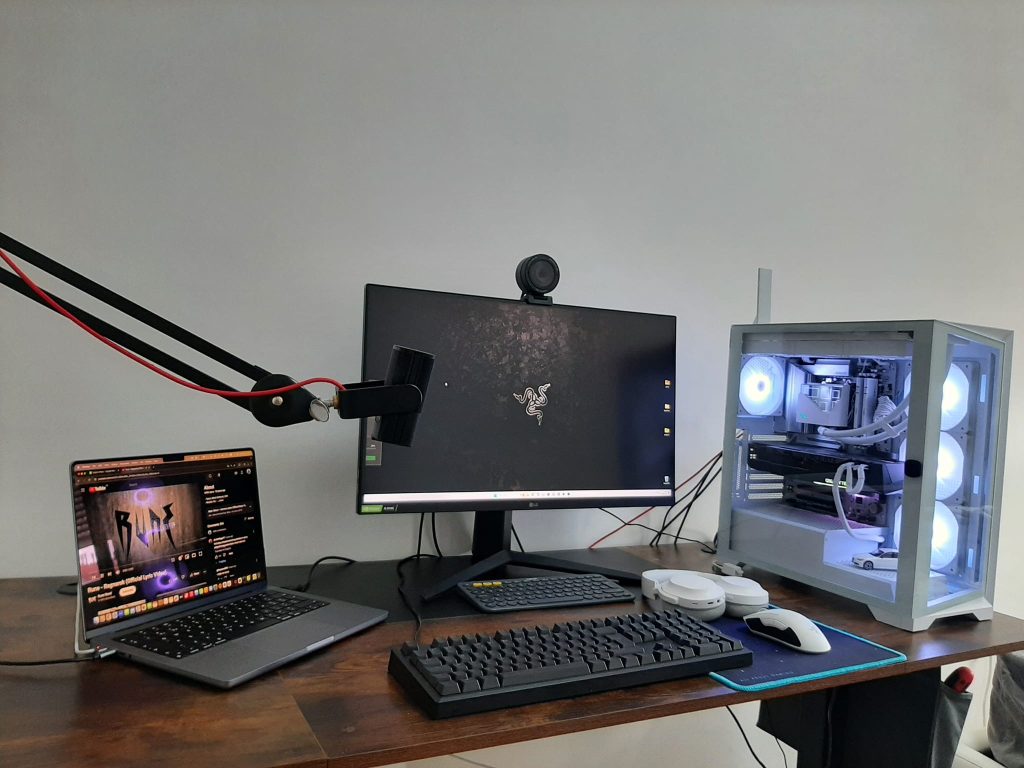
The travel kit gets all the attention but the desktop is where 90% of my actual work happens. Quick version because this isn’t a desktop-build guide:
- Tower: AMD Ryzen 9 7900X, 32GB DDR5, AMD Radeon RX 7900 XT, all in a white mid-tower build. Handles 4K edits, big Lightroom catalogs, and gaming when work’s done.
- Dual monitors: one main 27-inch 4K for work (not on the picture), one 27-inch 1440p secondary for reference, monitoring, or a second project window.
- Real chair, real desk. I don’t have a brand-loyalty take here – buy the best chair you can afford within reason, and a desk wide enough for two monitors plus elbow room.
- Wired/wireless peripherals. I use wireless on the road and wired at home. Mechanical keyboard, wired mouse, wireless headset for calls.
The point of the desktop section isn’t “build this exact setup.” It’s that the desktop’s job is to be the workhorse, and that frees the travel kit to be deliberately minimal instead of trying to be a portable everything.
When the Travel Kit Isn’t Enough
Honest moment. Sometimes the travel kit isn’t enough and you have to admit it before you commit to two days of trying to make it work and falling behind.
Fly home (or wait until you’re home) for:
- 4K multicam video editing on long timelines. A laptop will do a single-track 4K edit. A multicam edit with color grading on a 25-minute video will absolutely melt a thin-and-light, and the export times alone will eat your trip.
- AAA game-quality 3D renders, heavy Blender work, AI model training. These belong on the desktop. The laptop’s job is to triage and prep, not finish.
- Large database queries, big Docker stacks for dev work. Doable on the laptop, miserable on the laptop.
- Anything where you absolutely cannot have a hardware failure. A desktop is easier and faster to repair than a laptop. If a deadline is on the line and the laptop dies, you’ve got fewer options.
Knowing where the cutoff is saves trips and saves the day. I plan client deliverables around it now – anything that needs the desktop, I either knock out before I leave or schedule for after I’m back.
Home Setup vs Travel Kit: Side-by-Side
| Category | Home desktop setup | Travel kit |
|---|---|---|
| Compute | Ryzen 9 7900X / RX 7900 XT desktop tower | Laptop (MacBook Air M5 or Windows ultrabook) |
| Screen real estate | Dual 27″ monitors | Laptop + 15.6″ portable monitor |
| Connectivity | Gigabit wired ethernet | Travel router + eSIM backup |
| Power | Always plugged in | GaN charger + 20,000mAh power bank |
| Audio I/O | Wired mechanical kbd, wired mic, wired headset | Wireless ANC headphones + wireless lav mic |
| Camera | Webcam on monitor arm | Laptop webcam or phone via Continuity |
| Approx weight | Doesn’t move | ~3-4 kg in a backpack |
| Approx cost | $2,500-4,000+ tower build | $2,000-3,500 full kit |
| Best for | Long focus sessions, heavy edits, daily work | Calls, docs, light edits, content capture on location |
What I’d Skip
Real talk section. There’s a class of “must-have nomad gadget” content that pushes stuff that just doesn’t earn bag space.
The mini projector for “presentations anywhere.” I have never once needed to project to a wall in a hotel room for a real client. If you do, your laptop screen plus screen sharing works. Save the weight.
“AI productivity wearables.” The 2024-2025 wave of AI pin/pendant devices that promised to replace your phone? They mostly didn’t work as promised. Per most independent reviewers, they’re either redundant with your phone or worse than what’s already on your phone. Pass. If you actually want AI in your daily workflow, the AI tools that actually do something useful is a better starting point than another piece of hardware on your jacket.
Foldable bluetooth keyboards meant for typing on a phone. Sounds good in theory. In practice you’ll always carry the laptop anyway because phone-and-keyboard typing is still slower than a laptop for any real work.
The “universal” all-in-one travel adapter brick. The compact, hand-grenade-shaped ones break, fit weirdly in tight outlets, and don’t actually pass through enough current for laptop charging. Get country-specific small adapters.
A second 4K monitor for the travel kit. A 1080p portable monitor is genuinely all most people need for second-screen workflow on the road. Pushing to 4K adds weight, cost, and battery drain on your laptop for marginal real-world gain when you’re doing email and calls.
Mechanical keyboards for travel. I love mine at home. But a mechanical keyboard plus a 13-inch laptop is heavier and bulkier than just a 14-inch laptop with a better built-in keyboard. The marginal feel improvement isn’t worth it on the road.
I bought an overpriced 4K portable monitor last year because I thought I needed pixel density on the road. Turns out 1080p on a 15-inch screen at arm’s length is perfectly fine for spreadsheets and video calls, and I lugged 600 extra grams for six months before admitting it. Replaced it with the ARZOPA Z1FC and never looked back.
Budget Tiers – Travel Kit Recommendations
Entry (~$1,500-2,000 total)
- ASUS ZenBook 14 OLED or refurbished MacBook Air M3 – ~$800-1,000
- ARZOPA Z1FC 16″ portable monitor – ~$110
- GL.iNet Beryl AX travel router – ~$99
- Anker 65W three-port GaN charger – ~$35
- 20,000mAh USB-C PD power bank – ~$60
- Decent wired or budget wireless headphones – ~$100-200
Mid (~$2,500-3,500 total)
- MacBook Air M5 13″ or Dell XPS 14 entry – ~$1,099-1,700
- ARZOPA Z3FC 16″ QHD 180Hz – ~$200-280
- GL.iNet Slate AX travel router – ~$119
- UGREEN Nexode 100W or Anker Prime 100W – ~$70-80
- 20,000mAh PD power bank – ~$70
- Sony WH-1000XM5 / XM6 – ~$300-400
- DJI Mic 3 if you record audio – ~$219 single / $349 kit
Power user (~$5,000+ total)
- MacBook Pro M5 16″ or ThinkPad X1 Carbon Gen 14 max-spec – ~$2,500-3,500
- 27″ portable monitor (e.g., ASUS ZenScreen MB27ACF) – ~$500
- Slate AX router + dedicated 5G eSIM plan
- 140W+ GaN charger for fast top-ups
- Bose QuietComfort Ultra or Sony XM5/XM6
- Rode Wireless Pro for production-grade audio
- GoPro Hero 13 Black or DJI Osmo Action 5 Pro for video capture
Frequently Asked Questions
What do I need for a basic remote work setup? At minimum: a laptop with all-day battery, reliable Wi-Fi (with a backup), a comfortable chair, a good headset or headphones with a mic, and decent lighting for video calls. Everything else is optimization.
How much should I spend on a remote work setup? For a functional setup that won’t hold you back: roughly $1,200-1,500. For a setup that feels like an upgrade over a typical corporate-issued laptop: $2,500-3,500. Beyond that you’re in diminishing-returns territory unless you’re doing creative work that needs the power.
What’s the best laptop for working remotely in 2026? For most people, the MacBook Air M5 – 18-hour battery, silent, light, and the 16GB/512GB base config that arrived March 2026 covers almost any office workload. For Windows users, the Dell XPS 14 or ThinkPad X1 Carbon Gen 14. Match the laptop to the OS and ecosystem you already use rather than switching.
Do I really need a desktop and a laptop for remote work? No, most people don’t. A single docked laptop covers 90% of use cases. The split-setup approach makes sense if you do creative work that benefits from desktop power (4K video, 3D, big data, heavy multitasking) and you travel often enough that hauling a workstation laptop daily is impractical.
What’s the difference between a digital nomad setup and a home office setup? Home office optimizes for ergonomics and screen real estate – bigger monitors, real chair, fixed desk. Digital nomad setup optimizes for weight, battery life, and connectivity – small portable monitor, all-day-battery laptop, travel router. Both can do the same work; they just trade off comfort versus mobility.
How do I set up a portable office for travel? Three things to nail first: a laptop with at least 10 hours of real battery life, a travel router so you don’t depend on hotel Wi-Fi for every device, and a multi-port GaN charger so you carry one brick instead of four. Build the rest of the kit around those three.
What internet speed do I need for remote work? For video calls and most office work: 25 Mbps download, 5 Mbps upload is the comfort floor. For 4K video uploads or large file transfers, aim for 100+ Mbps. Latency matters as much as raw speed for calls – under 50ms ping is ideal. Per most ISPs and remote-work guides, the bottleneck is usually upload speed, not download.
What gear do digital nomads actually use day-to-day? Laptop, phone, travel router, portable monitor, GaN multi-port charger, noise-cancelling headphones, a few cables, and a power bank. That’s roughly 80% of what most working nomads carry. The other 20% varies by job – content creators add cameras and mics, developers add a mechanical keyboard and second laptop, calls-heavy people add a dedicated mic and webcam.
What I’m Testing Next
Updating this article in 30 days with hands-on time on the items I haven’t personally tested yet. On the list for the next refresh:
- M5 MacBook Air 13″ alongside my current setup for two weeks of real travel use
- Dell XPS 14 (2026) and the XPS 13 once it ships later this year for comparison against the MacBook
- GL.iNet Slate 7 (the newer Wi-Fi 7 model that’s just shipped) versus the Beryl AX I currently carry
- Vivo X200 Ultra video performance for vlogging – the still photography is incredible but I want to put the video side through a real moto trip
If you’ve been running a split-setup or have a piece of kit I’ve missed, drop a comment. I read all of them and the next refresh will include the genuine reader picks.
For more on building out the roadside of your setup, see the minimalist carry-on kit breakdown for backfill when refresh publishes.
For broader nomad-specific gadget picks beyond the work setup, our digital nomad gadget roundup covers the wider stuff. And if you’re setting up a home base in a rental, our renter-friendly smart home guide handles the desktop-side ergonomics and ambient setup without drilling holes you can’t fill.